To start using the MiHQ platform, you must first activate and verify your account - this process will involve getting approval from Milieu's Sales or Strategic Enablement team.
Activating your user account
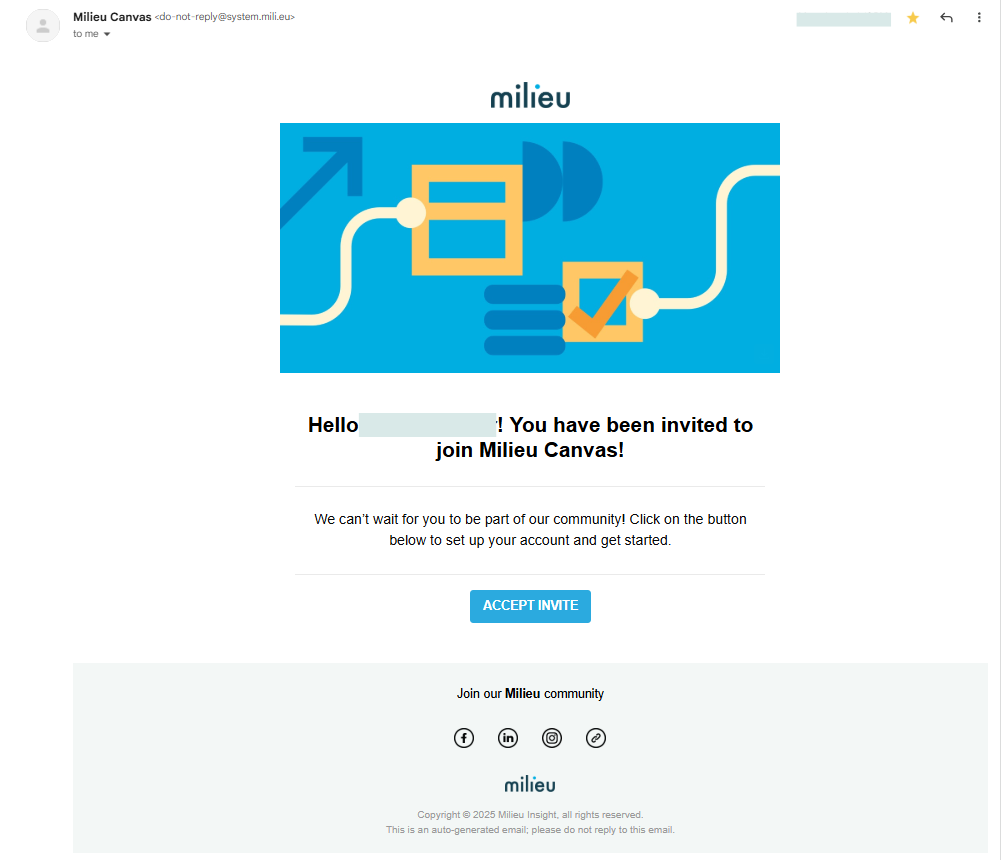
- Once confirmed to have an account created, you will receive an email invite from Milieu.
Note that: - The sender address should be: do-not-reply@system.mili.eu
- If you did not receive the email, please ensure that the mili.eu domain is whitelisted and images are enabled. Be sure to also check your junk/spam folder, and mark the email as not-junk/safe as needed.
- Click the ‘ACCEPT INVITE’ button in the email.
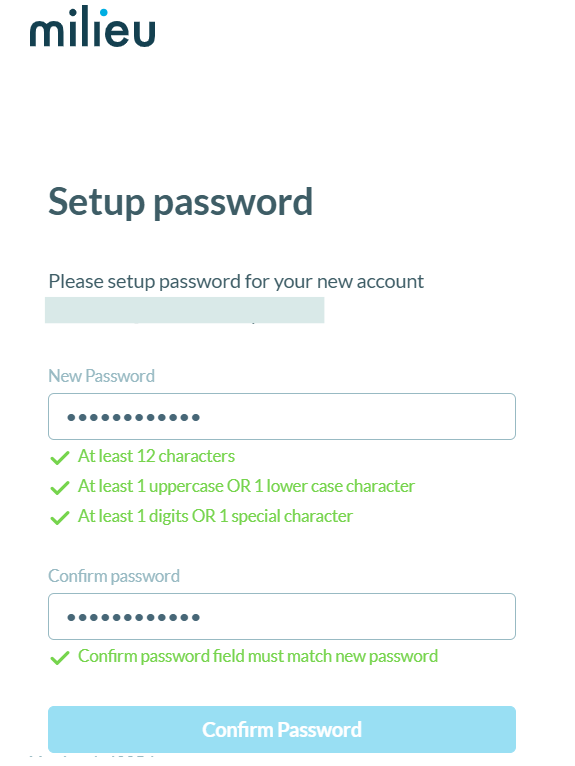
- You will then be redirected to a password creation screen.The password created must adhere to at least 3 categories from the following criteria:
- Passwords at least 12 characters in length
- Contains an uppercase character (A through Z)
- Contains a lower case character (a through z)
- Contains a digit (0-9)
- Contains a special character (!, $, @, #, %, etc)
- Once you confirm the created password, the account creation process is completed!
- You can now use the MiHQ platform with the credentials set-up.
Logging into MiHQ
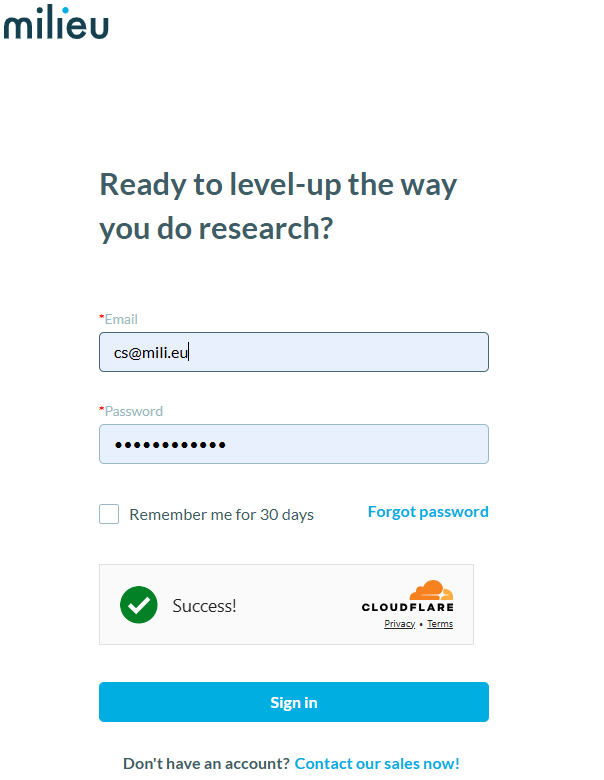
- First, navigate to https://studio.mili.eu/signin.
- Type in your credentials in the space provided.
(*Note: Please wait for the Cloudflare Security to finish its security checks and show a green checkmark.)
- Click the ‘SIGN IN’ button.
Was this article helpful?
That’s Great!
Thank you for your feedback
Sorry! We couldn't be helpful
Thank you for your feedback
Feedback sent
We appreciate your effort and will try to fix the article