TABLE OF CONTENTS
A custom dataset brings datapoints from several studies together into one dataset. You can then analyse, visualise, weight and share it like any other dataset. You can include datapoints from any study you have access to.
Before you start
- You can only add datapoints from studies you have access to.
- You will need the role of a Dataset Editor of the original study to be able to add datapoints from it to a custom dataset.
(*Note: A Dataset Viewer is not authorized to create custom dataset.)
- You will need the role of a Dataset Editor of the original study to be able to add datapoints from it to a custom dataset.
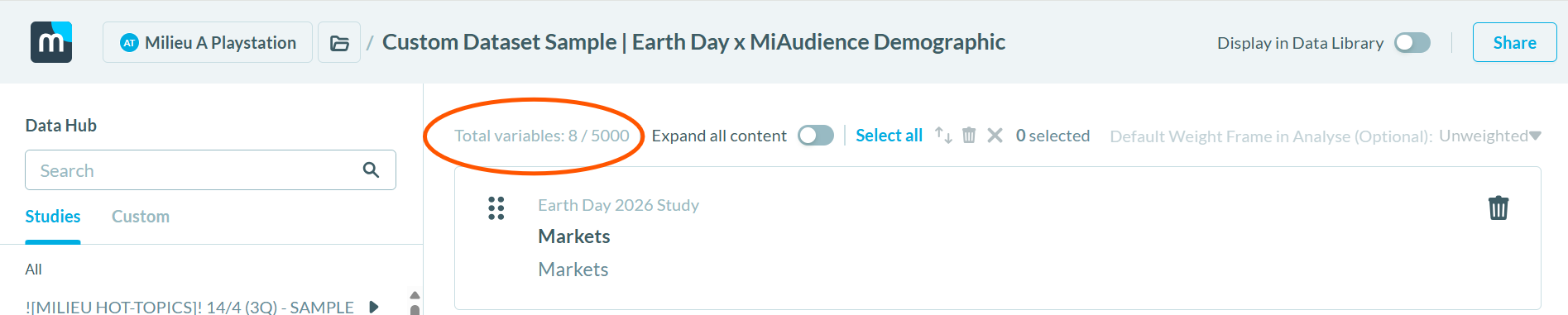
- A custom dataset can hold up to 5000 number of variables. The limit is shown in the dataset table builder as you add variables.
Where to create a custom dataset
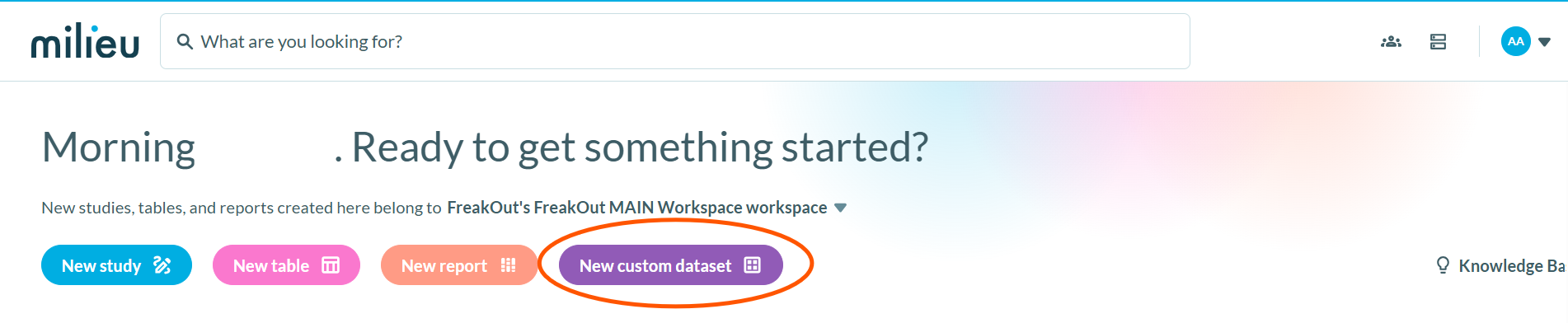
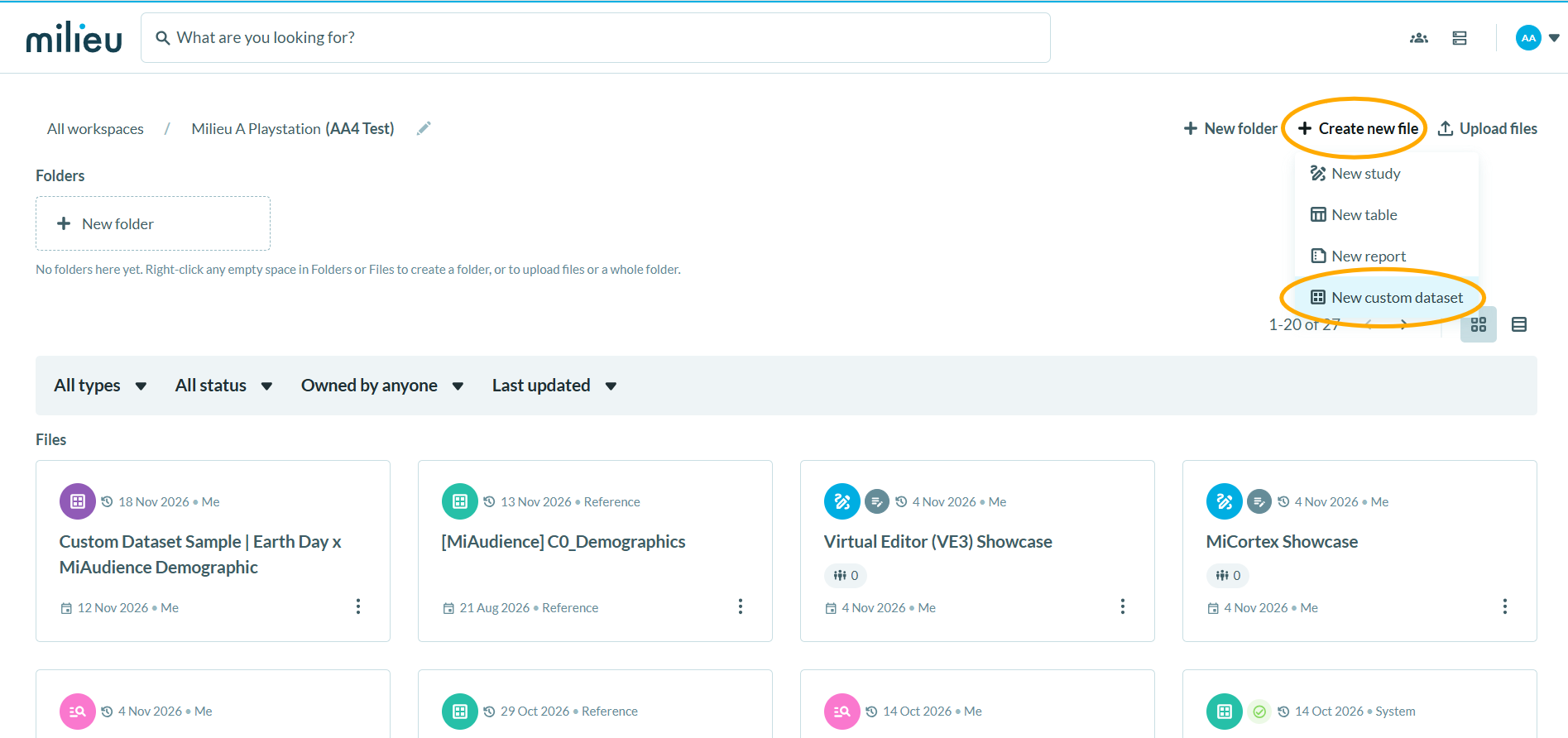
There are two places to start a custom dataset. Both open the same dataset table builder.
Start from | Steps |
|---|---|
Homepage | In the banner, click New custom dataset.
|
Workspace page | Open the workspace;
|
Built your dataset variables
1. In the study selector panel on the left, click a study to show its datapoints.
2. Drag the datapoints you want into the drag-and-drop area on the right. Each one becomes a row in the dataset list.
3. Repeat for any other studies you want to include.
4. Rename the dataset in the Dataset Name field.
5. The dataset saved automatically - there is no manual save required.
Custom dataset - Adding variables by Milieu Strategic Enablement
Share your custom dataset
1. Open your custom dataset and click Share a the top right.
2. Add users and set their permissions. For details, see Setting permissions for invited users on datasets.
Only Owners/Admins can see the Data Management tab when sharing.
Was this article helpful?
That’s Great!
Thank you for your feedback
Sorry! We couldn't be helpful
Thank you for your feedback
Feedback sent
We appreciate your effort and will try to fix the article