You can manage and make certain changes to prepare your dataset for use on Hub.
To navigate, in your Canvas account, click on hamburger icon ☰ on the top left corner of the screen and select Hub from the dropdown list shown upon you clicking the icon.
Under the Study Datasets, select your desired study.
*Note: In Hub, Analyse and Visualise, questions/datapoints are referred to as variables.
To edit the labelling of your variables:
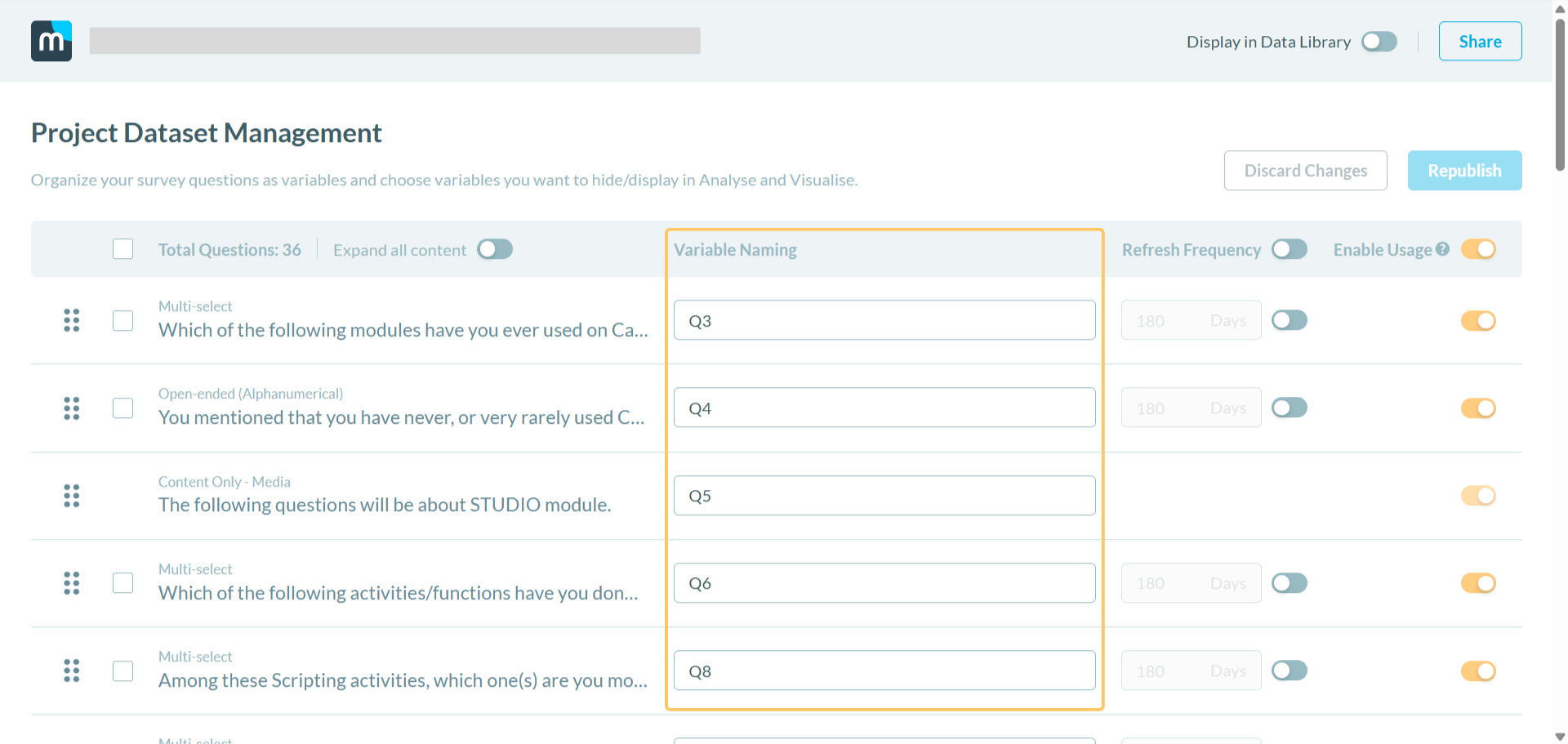
- Under the Project Dataset Management, you can edit the labelling of the questions/variables under Variable Naming.
*Note: Variables are named according to the order of appearance in the survey by default.
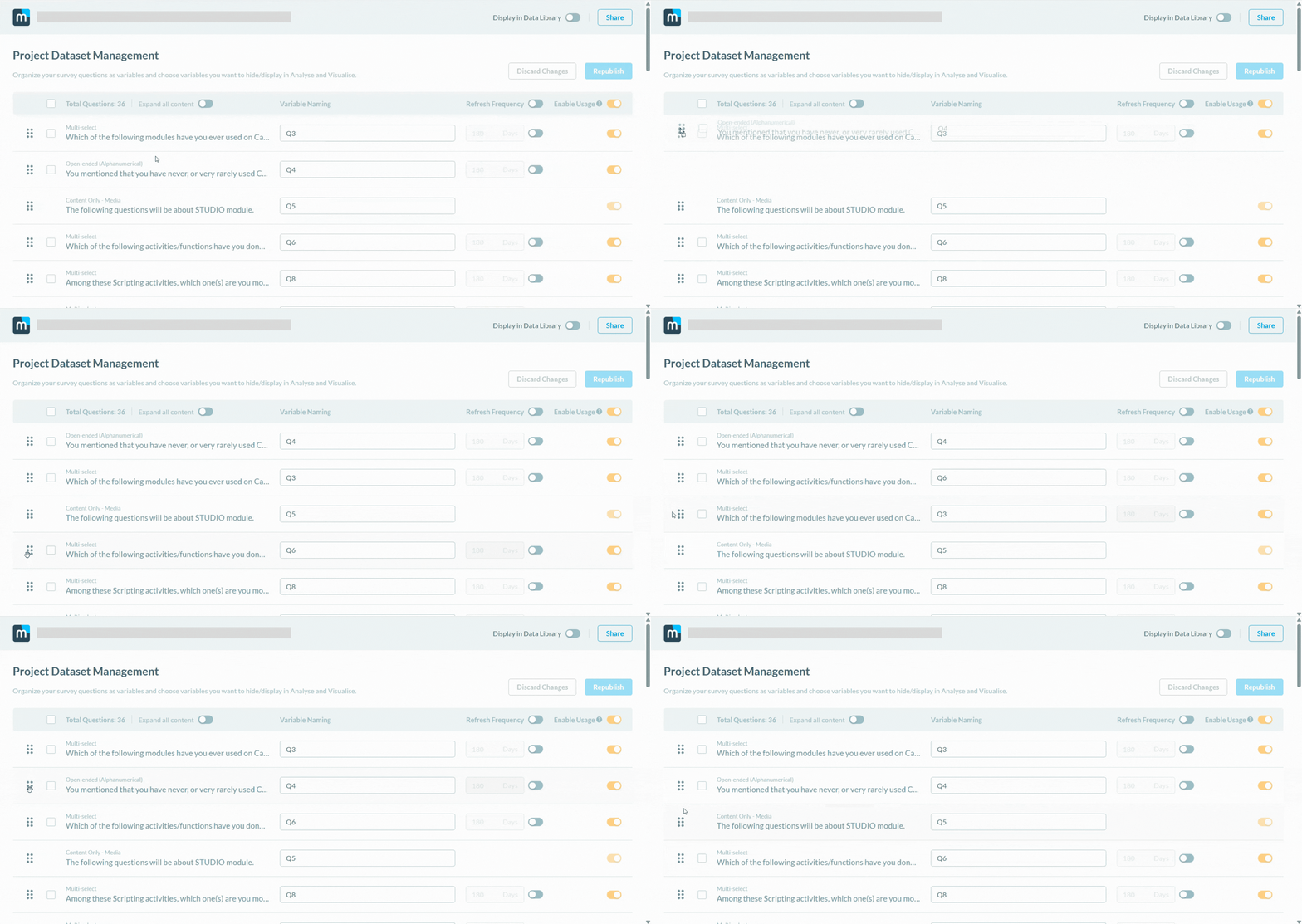
To re-order variables for clean organisation:
- Under the Project Dataset Management, you can rearrange the order of the variables for cleaner organisation and better customisation to fit your needs.
To manage the display of variables in Analyse:
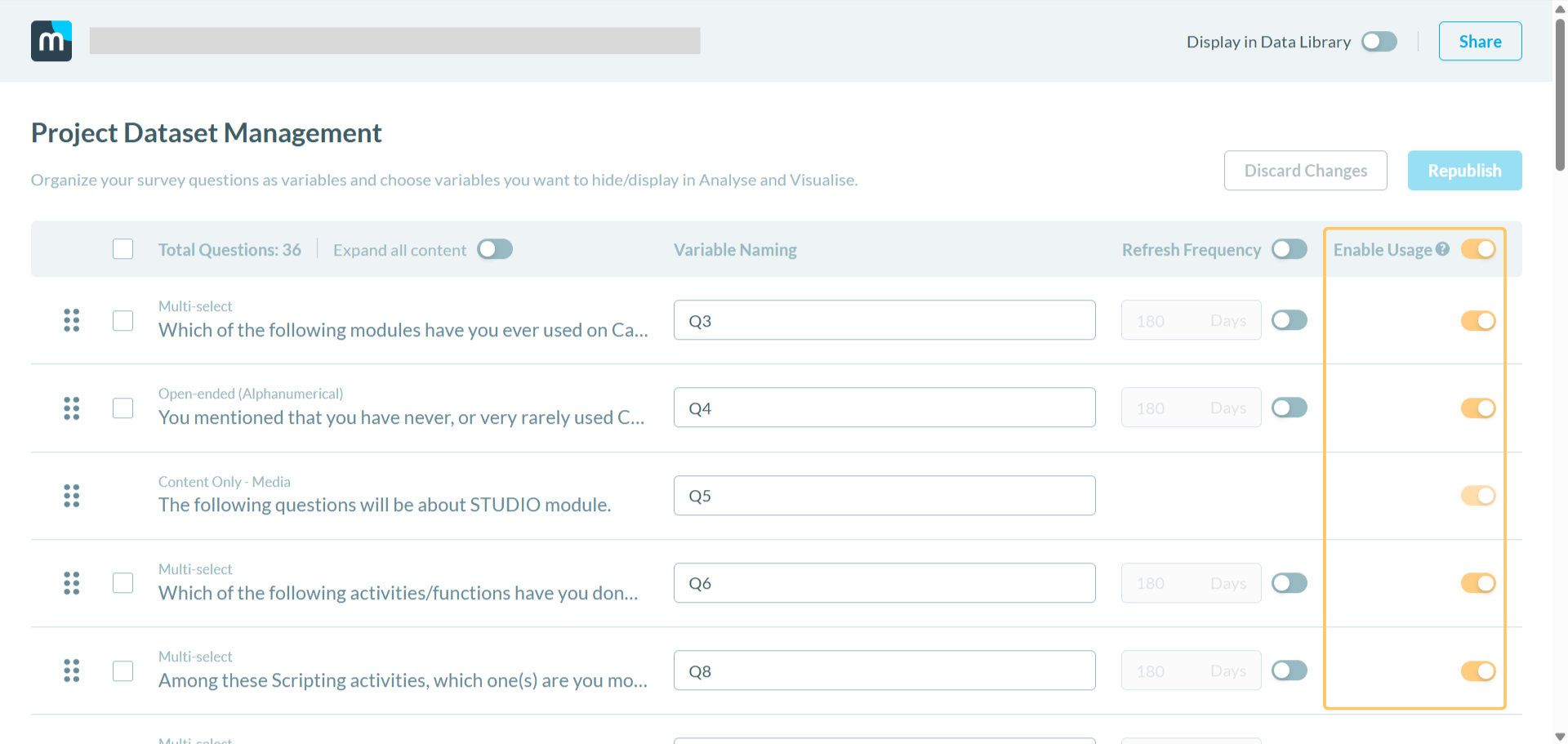
- Under the Project Dataset Management, you can manage the displaying of individual variables in Hub. This will impact their visibility on Analyse and/or Visualise.
- To toggle the display of individual variables, locate the ‘Enable Usage’ toggle on the right-most of each question.
*Note: You can also toggle the display of all variables by using the master toggle at the header row.
To allow variables to be used in other surveys:
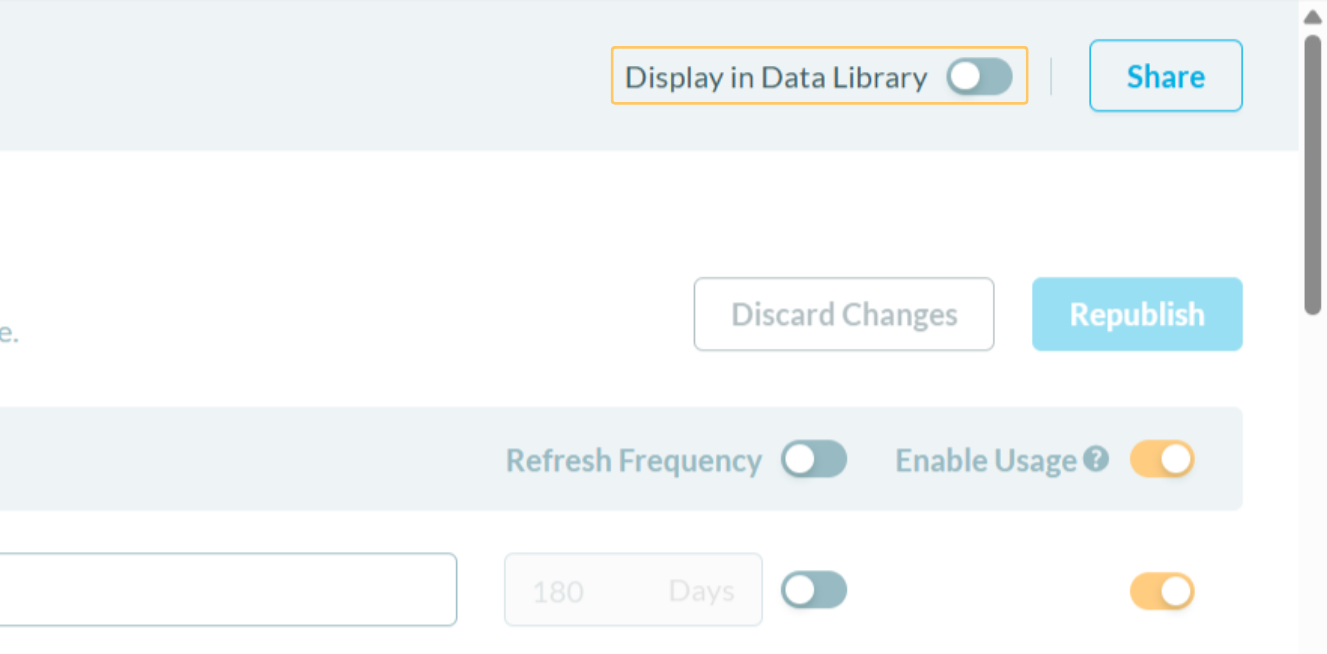
- At the top right of the browser window, there is a ‘Display in Data Library’ toggle.
- By default, this is disabled — variables remain tied to their respective surveys and are typically unique to the survey in which they were collected.
- When the toggle is enabled, variables from that survey become part of the data library and will be available for use across other surveys.
To set the refresh frequency of the variables:
Under the Project Dataset Management, you can resurface questions to respondents after a specified period.
This functionality is located in the Refresh Frequency column. When enabled, respondents become eligible to re-enter their responses to the same question once the designated time period has expired.
*Note: Similarly to Usage/Visibility of Variables, you can also toggle for all the variables to have refresh frequency (or disable all) by using the master toggle at the header row.
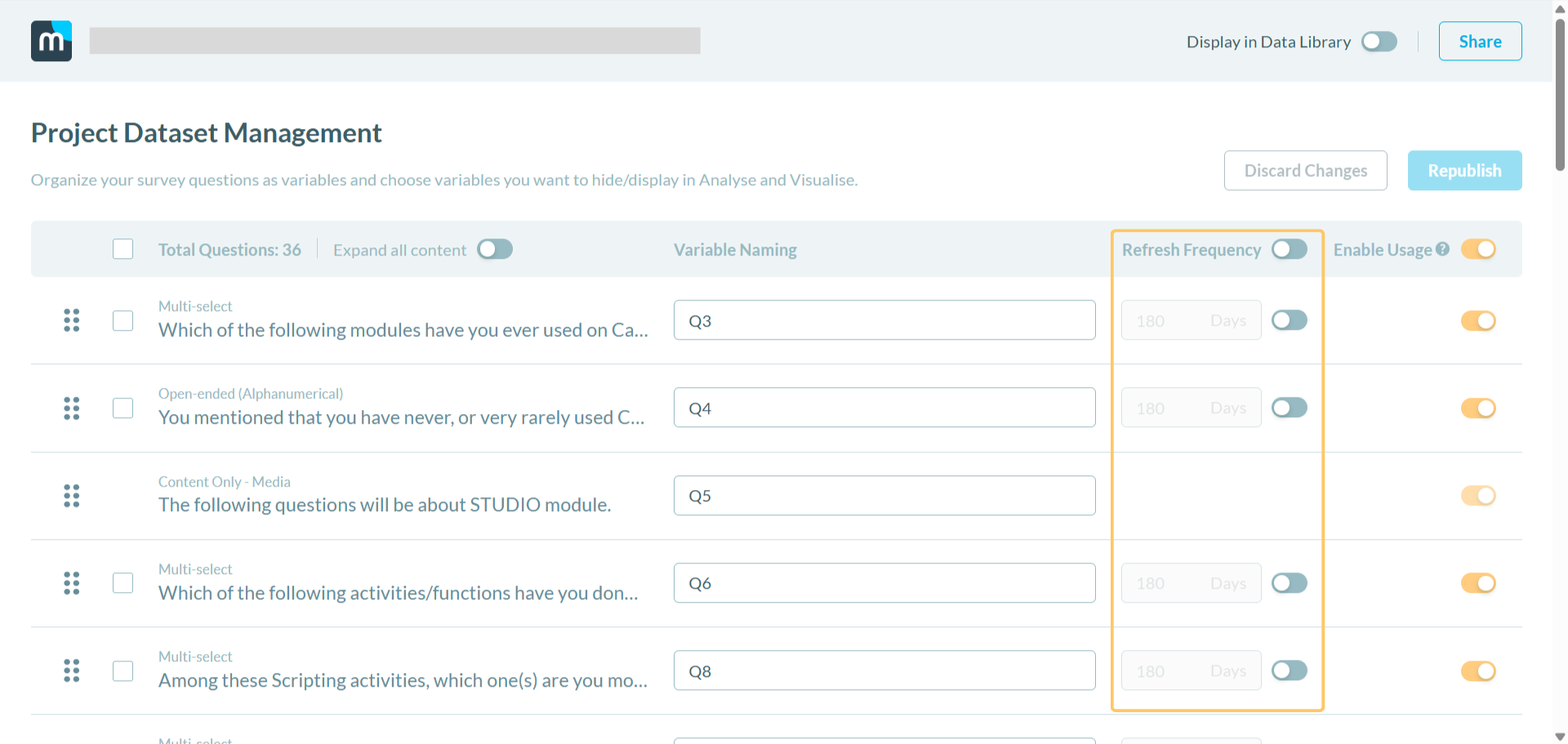
Once edits are done, click Save and Publish to save changes. |
Was this article helpful?
That’s Great!
Thank you for your feedback
Sorry! We couldn't be helpful
Thank you for your feedback
Feedback sent
We appreciate your effort and will try to fix the article