Creating a new custom Workspace
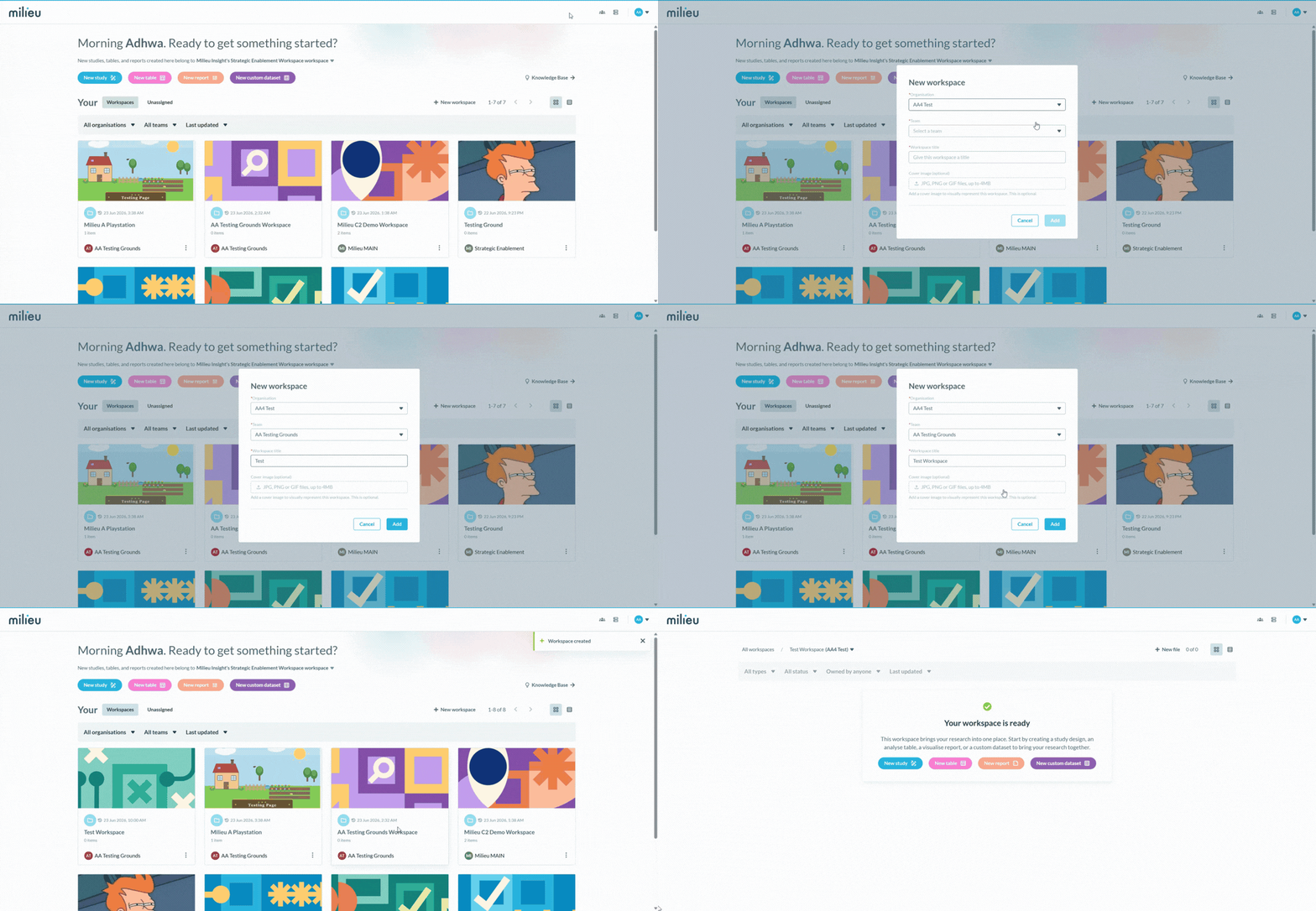
Apart from Workspace(s) created automatically for a team, uses have the ability to also create custom Workspace(s).
From the homepage, click the + New Workspace button in the top right, next to the view toggle.
Enter a name for your workspace.
Click Create (or equivalent confirm action).
Your new workspace will appear in the homepage grid immediately.
Renaming a Workspace
Hover over the workspace card on the homepage.
Click the three-dot menu (⋯) on the card.
Select Edit.
Update the name and save.
*Note: The Edit option is only visible to the workspace owner. The default workspace cannot be renamed. Banner images for automatically created Workspace(s) currently also cannot be edited.
Removing a custom Workspace
A custom workspace can only be removed if it contains no resources. If the Remove option appears unavailable, check that all resources within the workspace have been deleted first (Note that published studies cannot be deleted).
Once the workspace is empty, Remove will become active.
Ensure all resources within the workspace have been deleted.
Open the three-dot menu (⋯) on the workspace card.
Select Remove.
Confirm the action when prompted.
*Note: The Remove option is only visible to the workspace owner. The default workspace cannot be removed.
Was this article helpful?
That’s Great!
Thank you for your feedback
Sorry! We couldn't be helpful
Thank you for your feedback
Feedback sent
We appreciate your effort and will try to fix the article