Resources view within a Workspace
Once you open a workspace, you can view and interact with all the resources it contains.
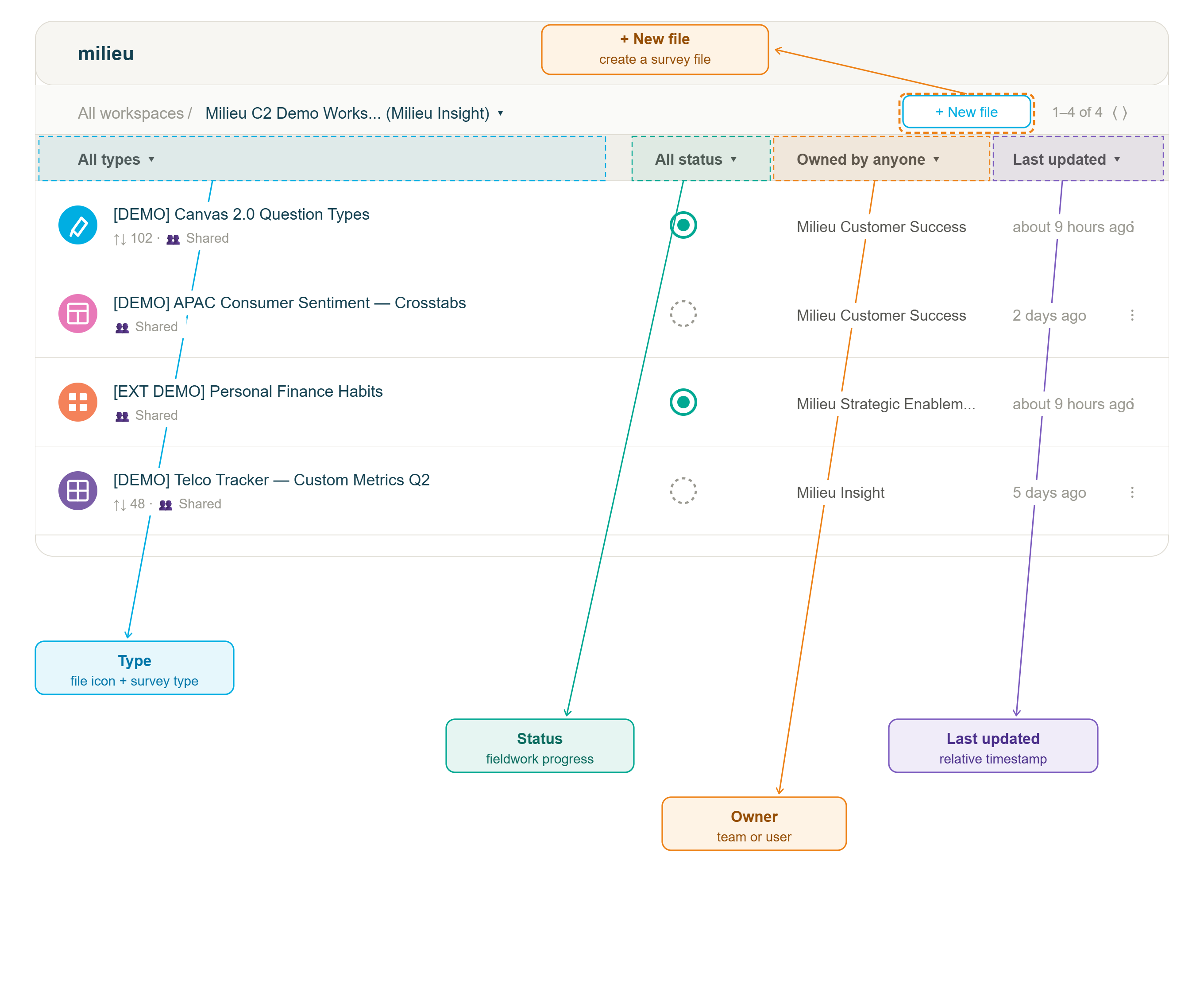
Resource types in a Workspace
A workspace can contain resources from across Canvas 2.0:
| Type | Source module | ||
|---|---|---|---|
 | Study |  | Studio |
 | Data management default resource |  | Hub |
 | Custom dataset | ||
 | Table |  | Analyse |
 | Report (Charts) |  | Visualise |
Grid view and List view within a workspace
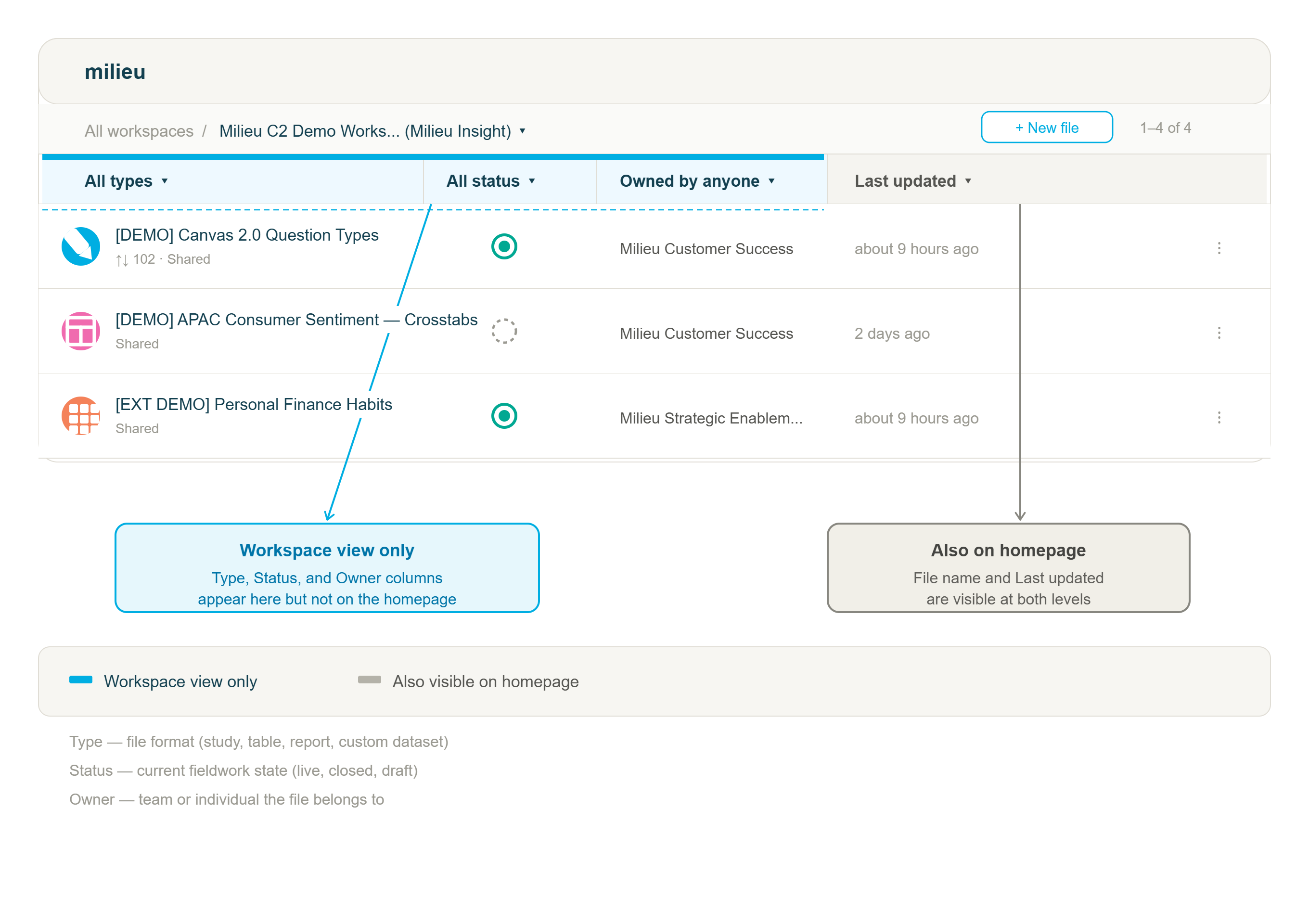
Like the homepage, the workspace page supports both Grid and List views. The List view within a workspace is more detailed than the homepage List view, and includes additional columns:
Type — the resource type (Study, Table, Report, etc.)
Status — the current status of the resource
Owner — the team member who owns the resource
Last Updated — when the resource was last modified
Tips on locating resourcesUsers with a lot of projects may find themselves struggling to locate the resources they want. Here are some recommended filters that may help:
|
Resource actions
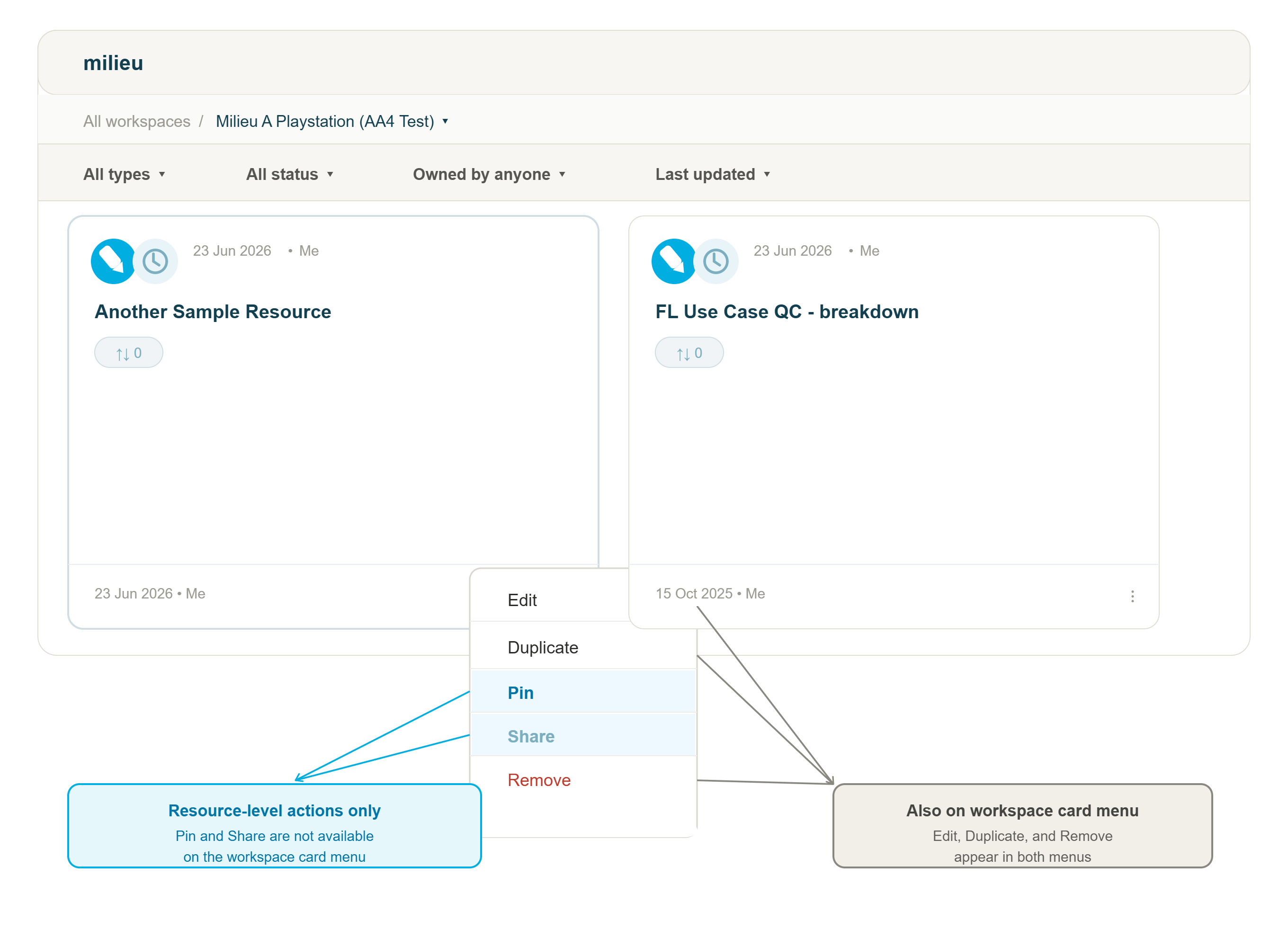
Individual resources within a workspace support the following actions, accessible via the three-dot menu (⋯) on each resource card:
Pin — Pin the resource for quick access
Share — Share the resource with other team members
Resource(s) movement
Apart from datasets*, a resource that is assigned will belong exclusively in the Workspace selected. From 20th July 2026 onwards, resources can now be moved between workspaces.
*Note: Datasets work differently in Workspaces from studies/ tables/ reports and can be used across Workspaces under the condition that the user in question belongs to both workspaces and/ or both teams they are using the dataset in.
Creating a custom dataset from within a Workspace
You can create a custom dataset* directly from the Workspace page, without navigating to Hub.
Open the workspace you want to add a dataset to.
Click the + Create Dataset button.
Follow the dataset creation flow.
*Note: Datasets created this way are automatically associated with the workspace they are created in. They will also be accessible from Hub.
Workspace path in module headers
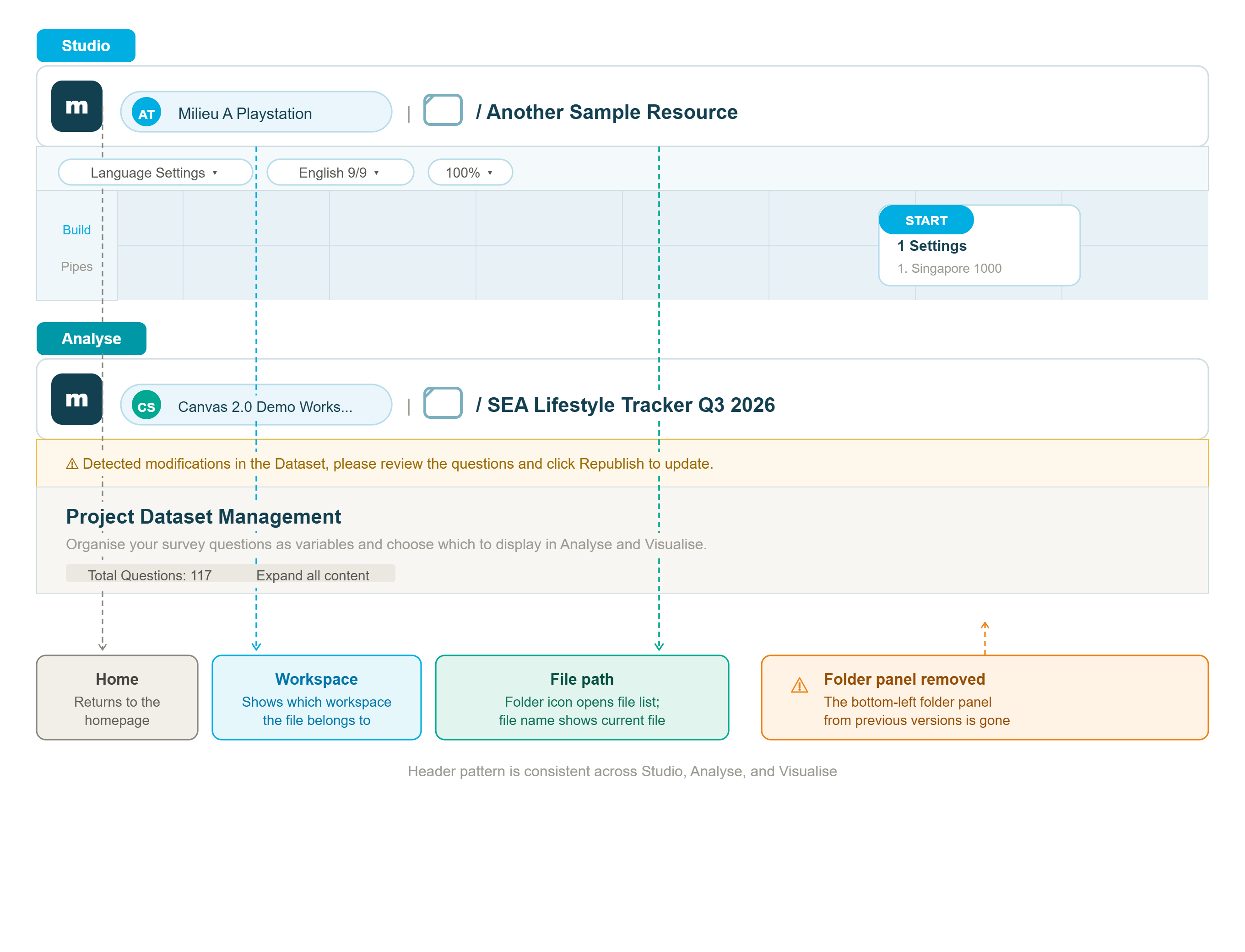
When you open any resource from a workspace — the header at the top of the page now shows the workspace path the resource belongs to, alongside the resource title.
Was this article helpful?
That’s Great!
Thank you for your feedback
Sorry! We couldn't be helpful
Thank you for your feedback
Feedback sent
We appreciate your effort and will try to fix the article