The Canvas 2.0 homepage has been redesigned on the 22nd of June 2026. The previous module-based card layout (Studio, Analyse, Visualise) has been replaced with a workspace-first view, where all your resources are organised by workspace.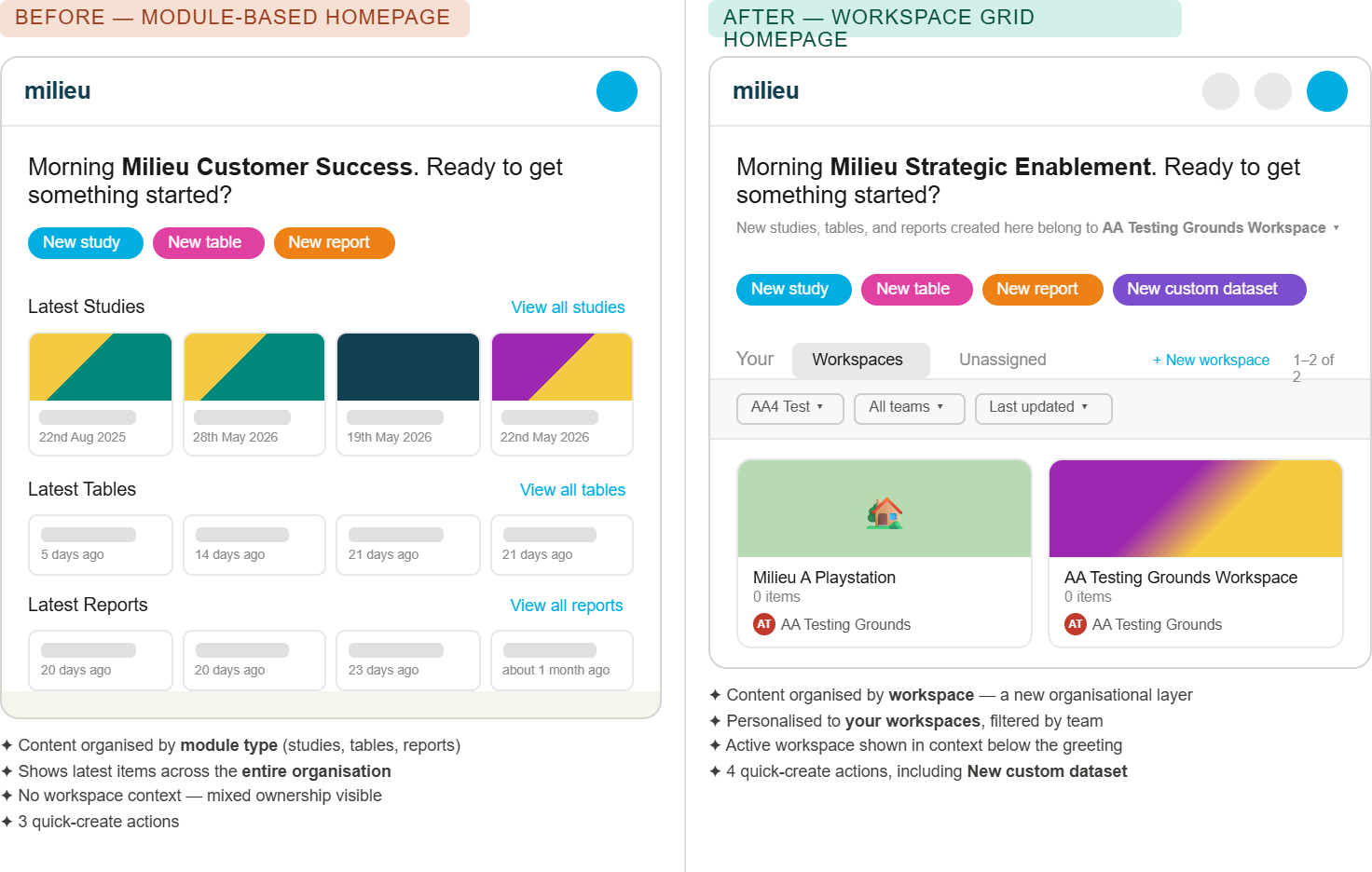
What you'll see on the homepage
When you log in, the homepage displays all workspaces you have access to as a card Grid by default.
Canvas 2.0 Workspace Homepage by Milieu Strategic Enablement Team
Switching between teams
If you belong to more than one team, you can switch your active team using the dropdown menu located beneath the page banner. A search bar is included in the dropdown for quick lookup.
Filtering and sorting workspaces
Above the workspace list, you can:
- Filter by Organisation or Team
- Sort by Last Updated
Grid view and List view
The homepage defaults to card Grid view, which displays workspaces as visual cards. You can toggle to table List view using the button to the right of the filters. In List view, workspaces are displayed in a table with columns for Organisation, Team, and Last Updated.
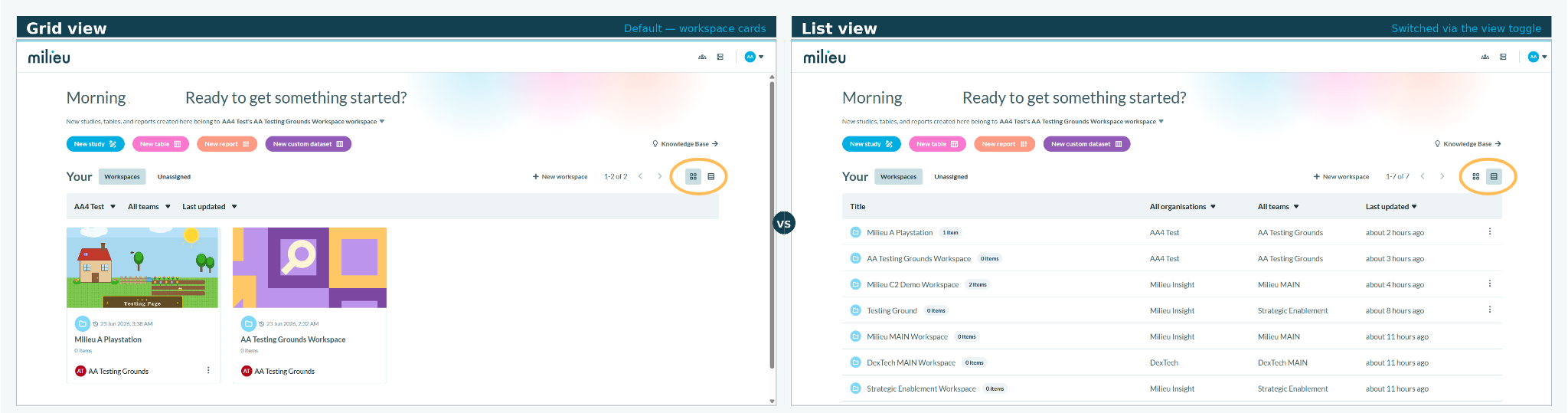
Click on the image to view larger version of the visual comparison.
Tips on locating resourcesUsers with a lot of projects may find themselves struggling to locate the resources they want. Here are some recommended filters that may help:
|
Workspace card actions
Each workspace card supports actions accessible via the three-dot menu (⋯). These options are only visible if you own or created the workspace:
- Edit — Rename
- Remove — Permanently remove the workspace (only available when the workspace contains no resources. - see Removing a workspace)
*Note: The default workspace does not display these options as it cannot be edited or removed.
Was this article helpful?
That’s Great!
Thank you for your feedback
Sorry! We couldn't be helpful
Thank you for your feedback
Feedback sent
We appreciate your effort and will try to fix the article