The Data Library transforms static historical data into an active recruiting tool. Rather than relying on "screener" questions at the start of every survey, users can use existing Data Library points to pre-qualify or filter participants before they even begin the survey.
Implementation in the Workflow
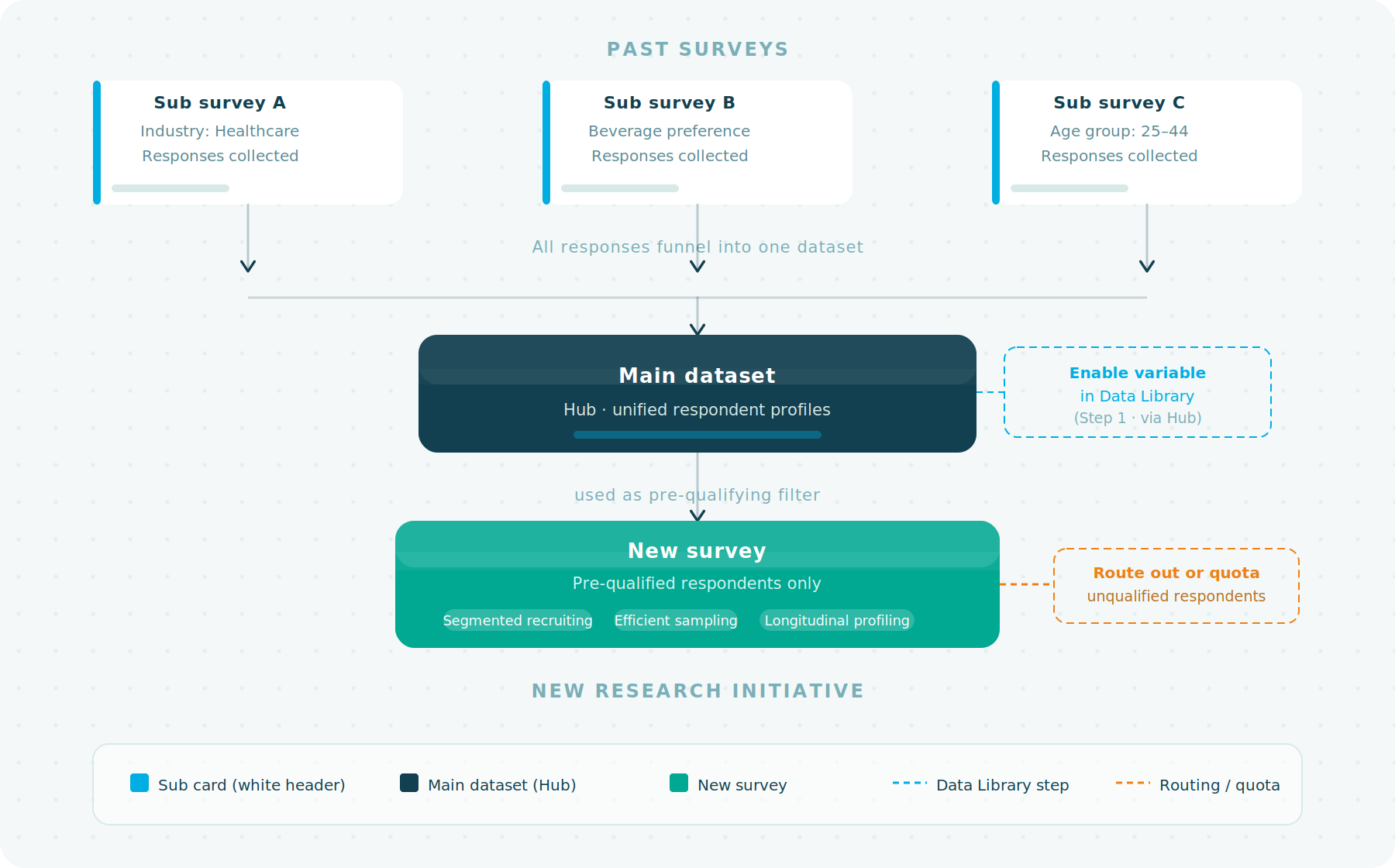
Because all "Sub" card responses funnel into a single "Main" data set in the Hub, you can use that Main data set as a filter for new research initiatives.
- Segmented Recruiting: You can configure a new survey to only be accessible to respondents who have a specific value stored in the Data Library (e.g., "Industry: Healthcare").
- Efficient Sampling: This eliminates "disqualified" respondents early in the process, ensuring that your sample size and budget are spent only on the target demographic.
- Longitudinal Profiling: Over time, your organisation builds a complete, unified profile for each respondent, allowing for increasingly complex targeting without increasing the number of questions asked per session.
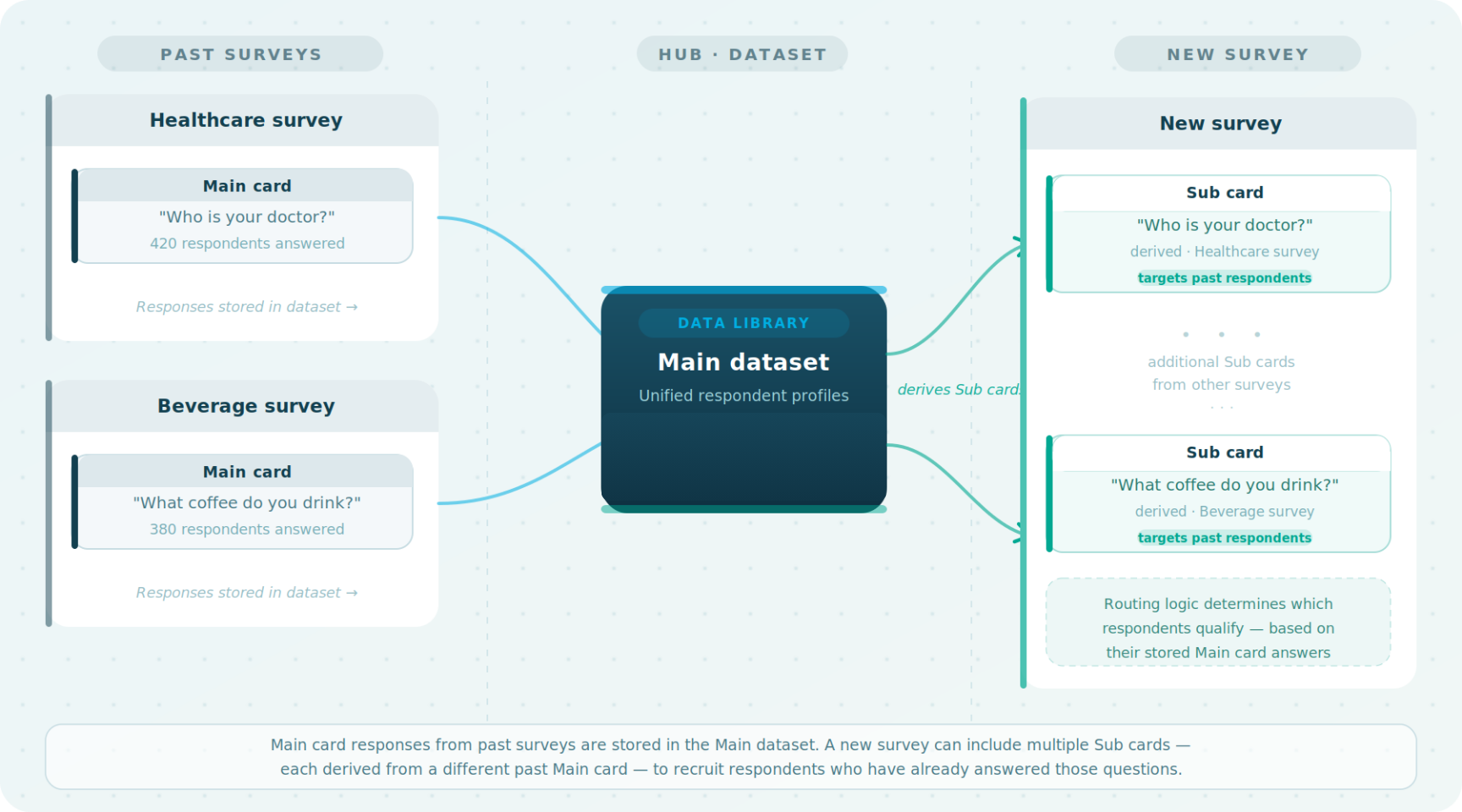
How to set up targeted audience filtering
Step 1: Enable the variable in the Data Library
via Hub
Before filtering respondents in a new survey, ensure the targeting criteria — the historical data point you want to use — is available in your Data Library.
- Navigate to the Hub module using the main menu (hamburger icon).
- Select the Study Dataset or Custom Dataset that contains the question you want to use for filtering (e.g., a previous question identifying "latte drinkers"). You can also use Custom Variables — such as a custom age group created in Analyse — as long as they are published in a custom dataset.
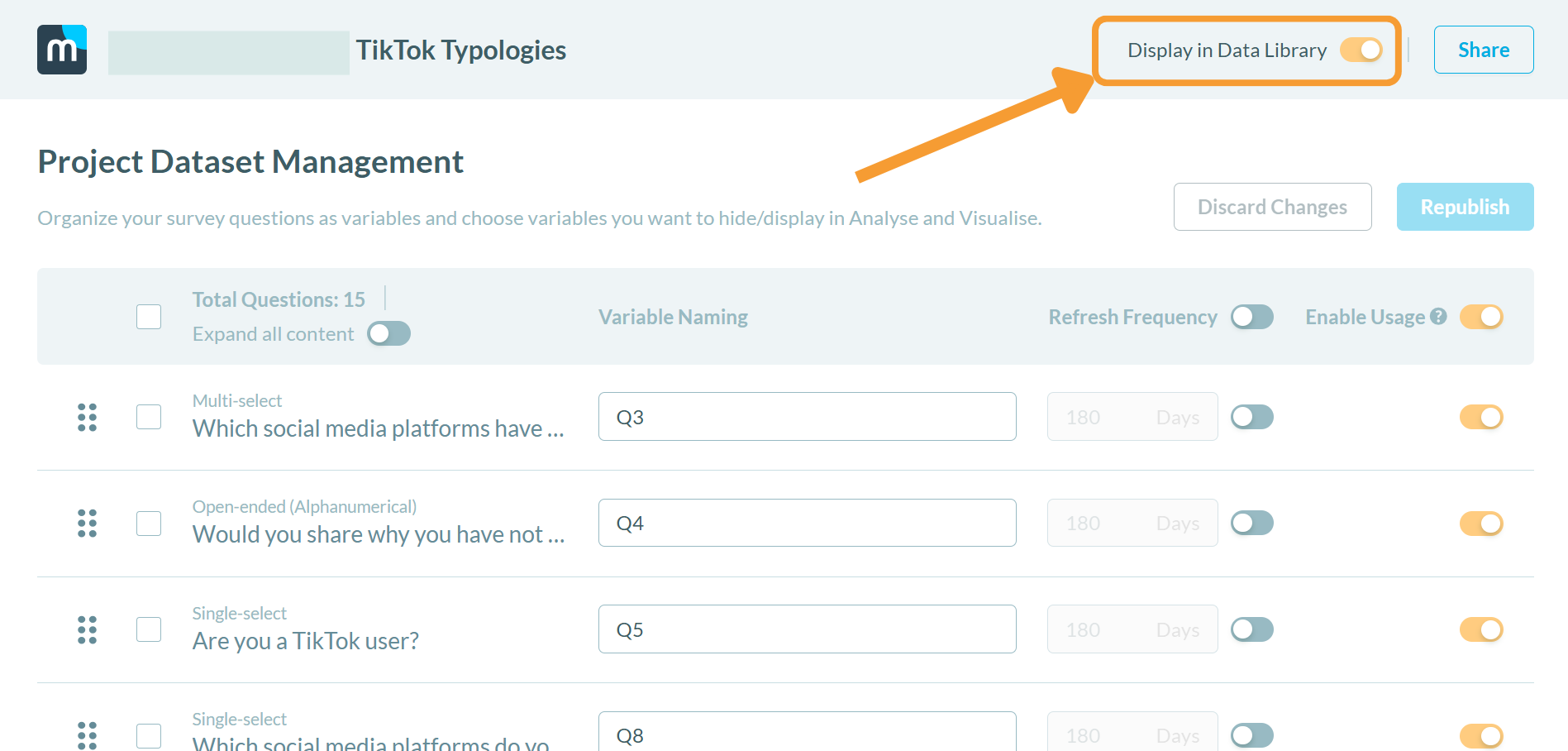
- Toggle on Display in Data Library for that specific variable.
Step 2: Add the Data Library question to your new survey
via Studio
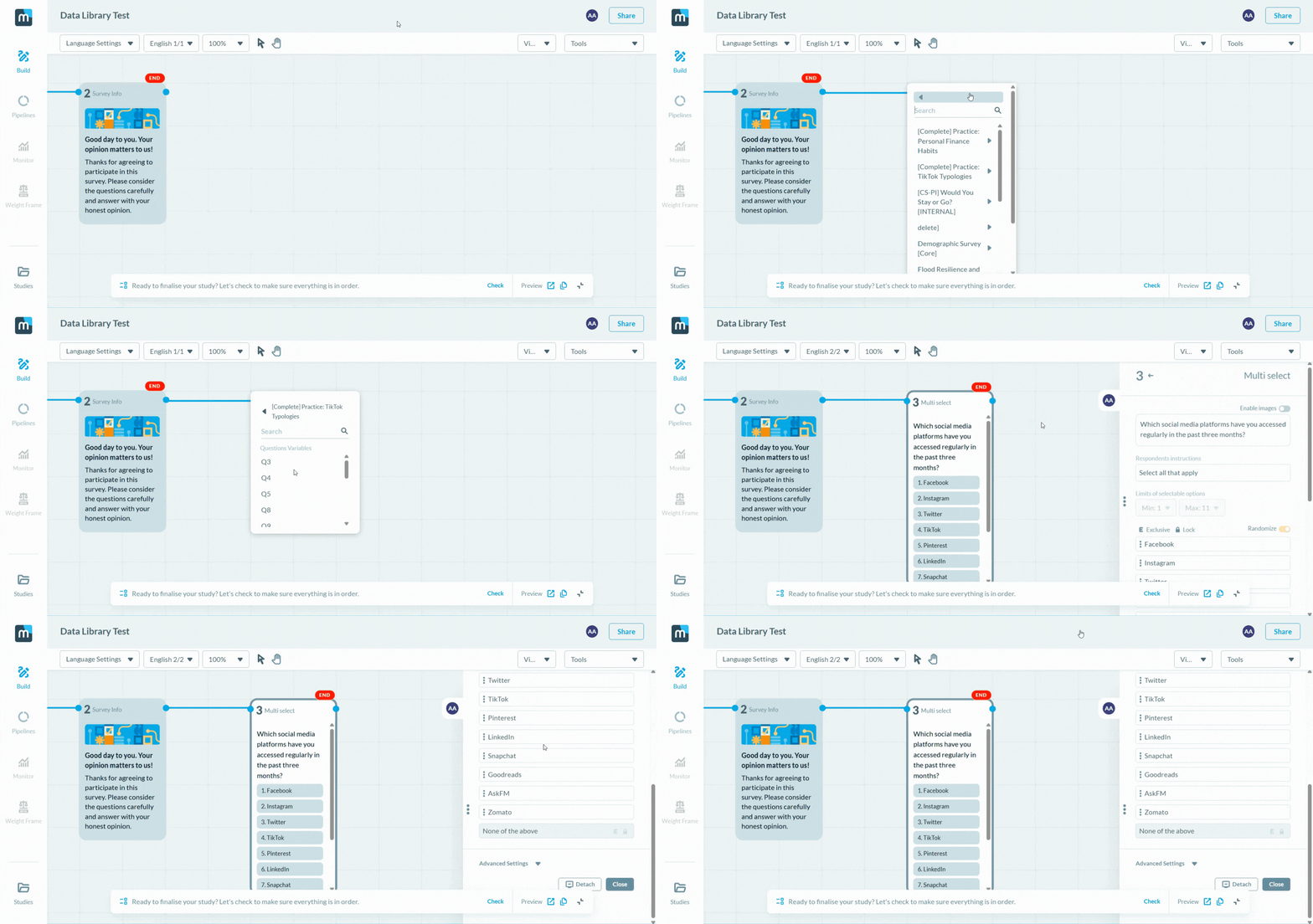
- Navigate to the Studio module and open your new survey in the Build (Visual Editor) tab.
- Right-click anywhere on the blank workspace to open the context menu, then select Data Library to insert your saved question into the survey script.
Step 3: Set up your routing and filtering logic
Once the Data Library question is in your survey, define what happens to respondents based on their answers.
- Hover over the answer option you want to target (e.g., "Latte") to highlight it, then click and drag the pink dotted routing line to connect it to the next question in your survey.
- For options you want to exclude, drag their routing lines to a Screenout card to disqualify those respondents. Alternatively, route them to a Single Quota or Quota Set card to control how many respondents of a given profile are admitted.
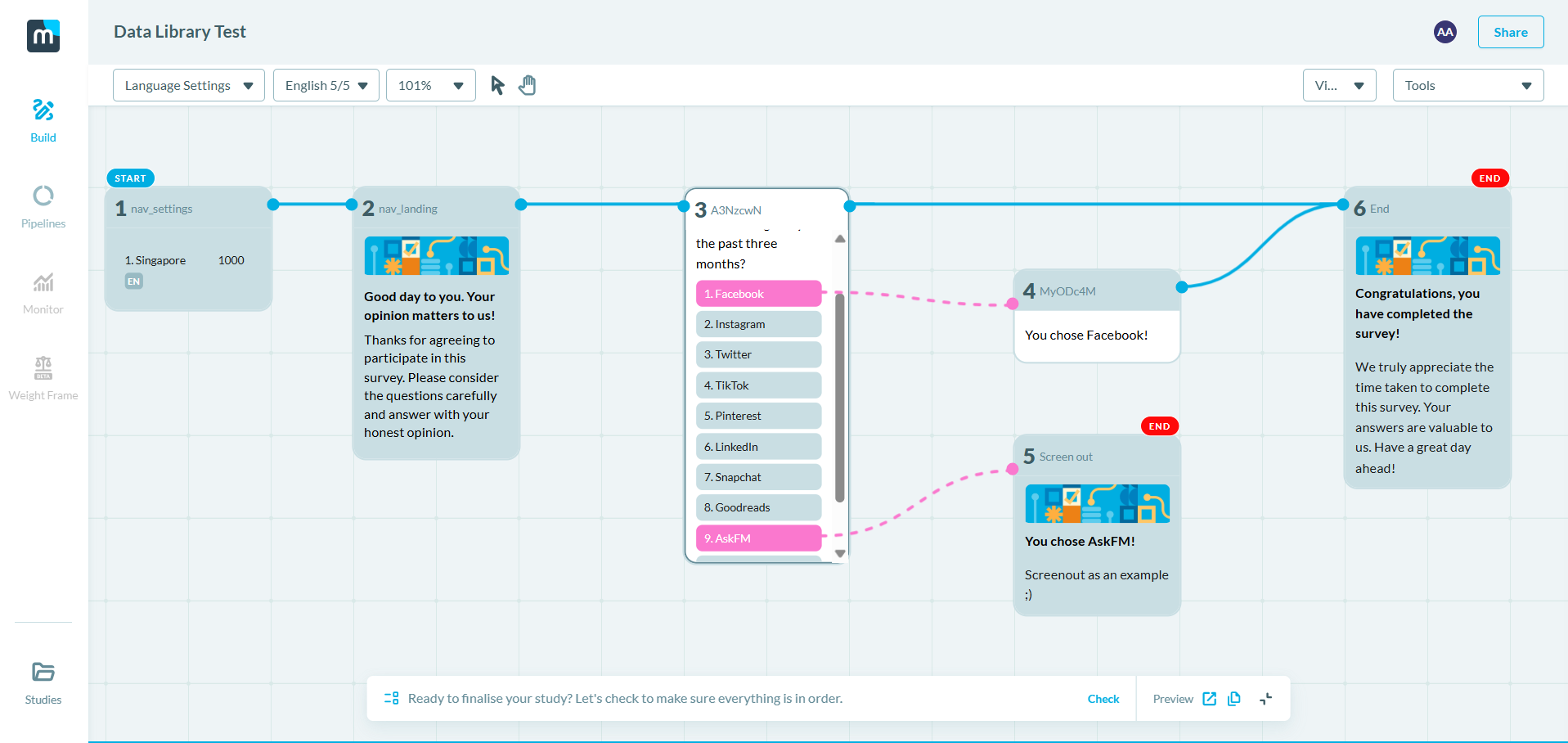
*Note: Data Library / Sub cards have white header as compared to the regular grey header in other cards.
Was this article helpful?
That’s Great!
Thank you for your feedback
Sorry! We couldn't be helpful
Thank you for your feedback
Feedback sent
We appreciate your effort and will try to fix the article